

Getting started
Install itokens, tell it your name, and in a few minutes you are chatting with a private AI on your Mac.
Step 1: install itokens
You need a Mac with Apple Silicon (M1 or newer) and macOS 14 or later.
The easy way: the disk image
- Download. Go to the download page and click Download .dmg. Your browser saves
itokens_v<version>.dmgin your Downloads folder.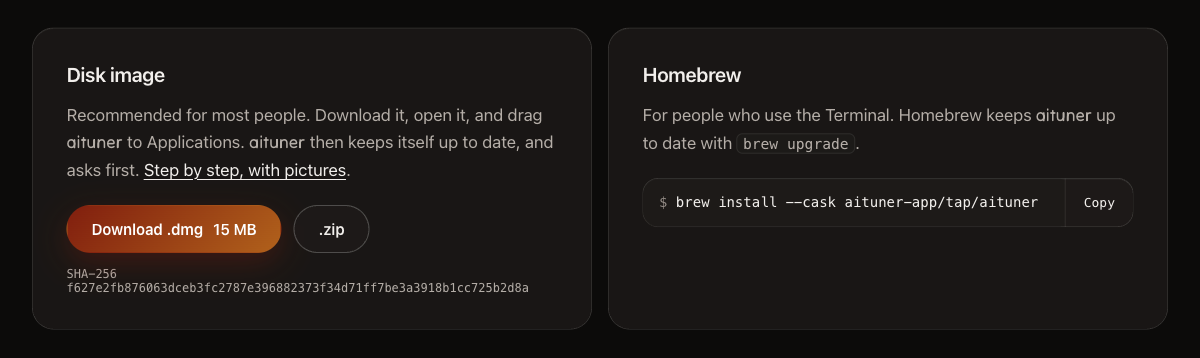
- Open it. Open your Downloads folder in Finder (or click the download in your browser) and double-click
itokens_v<version>.dmg. A window opens with two icons: itokens and Applications. - Drag itokens onto Applications. Drag the itokens icon onto the Applications folder icon in that same window. This copies itokens into your Applications folder.
- Enter your password if macOS asks. macOS asks for your Mac's login password when it needs permission to change the Applications folder, for example when you replace an older copy of itokens. Type it and click OK.
- Open itokens. Open your Applications folder and double-click itokens (or press Command-Space, type itokens and press Return). The first time, macOS says itokens was downloaded from the internet and asks if you want to open it: click Open. itokens is signed by its developer and notarized by Apple.
- Tidy up. Eject the itokens disk in Finder's sidebar, and you can delete the
.dmgfrom Downloads.
From now on itokens keeps itself up to date: it installs a new version when it opens and starts again, and the menu bar shows when an update is ready. See Updates.
For Terminal users: Homebrew
If you use the Terminal and Homebrew:
brew install --cask itokens-app/tap/itokensUpdate later with brew upgrade --cask itokens. More ways to check a download are in Install.
Step 2: tell it your name
The first time you open itokens, it takes a quick look at your Mac's hardware and rates what your Mac can do with local AI. Then it asks one thing: How should I refer to you? Type your name and press Continue.
Step 3: it sets itself up
itokens installs Python and Apple's MLX into its own folder (no password), downloads a model chosen for your Mac and starts it. It always leaves a fifth of your Mac's memory for macOS and your other apps. A progress bar says what it is doing; you can close the window, and it tells you when it is ready. More in Using itokens.
Step 4: chat
When your AI answers, a chat opens. Type anything, or pick a suggestion.
Keep it running
Close the window: itokens and your AI keep running in the menu bar. Click the orb icon in the menu bar to see your AI at work or to open itokens again. Quit stops everything cleanly, including your AI. See The menu bar.