

Using itokens
itokens makes every technical choice for you: no terminal and no password. Tell it your name, and a private AI on your Mac is ready to chat, free to use.
The first time you open it
- A look at your Mac. itokens checks your Mac's chip, memory, graphics and storage, and shows what it found. It moves on by itself after a moment, or press Return. Used itokens before? Restore from a backup on the next screen brings your chats, skills and Library back (see Backup).
- One question. "How should I refer to you?" Type your name and press Continue. Your AI uses that name when it talks to you.
- Setting up everything. itokens installs what it needs into its own folder, with no password, and keeps your Mac awake until it is done. A progress bar says what it is doing; you can close the window, and it tells you when it is ready.
- Chat. When your AI answers, a chat opens.
What setup does
Python (installed into itokens's own folder when your Mac does not have a recent one), Apple's MLX, then an AI model downloaded and started. itokens starts with the Quick model for your Mac, so your first chat comes soon; the Balanced and Deeper ones download afterwards, in the background.
itokens only chooses from a short list of models that were run on a Mac and checked before being listed. By default they are made in the United States: Llama by Meta and Gemma by Google. Models made elsewhere can be switched on in Settings. Your Mac's rating sets the size, always leaving a fifth of your Mac's memory for macOS and your other apps. Before the chat opens, itokens asks the model a first question; if it does not answer properly, itokens steps down to the next smaller model by itself.
Your Mac's AI capability
itokens rates what your Mac can do with local AI, from its measured hardware: whether it has an Apple Silicon GPU, its unified memory (the GPU's memory on these Macs) and, once MLX is installed, how much of it macOS lets the GPU use. The rating says plainly what to expect, so a smaller Mac is not promised what it cannot deliver.
| Rating | Typically | What to expect |
|---|---|---|
| Incapable | No Apple Silicon GPU | Cannot run AI models; itokens needs an M1 or later. |
| Very limited | 8 GB, or less than 8 GB usable by the GPU | Small models only: short, simple answers that make mistakes. |
| Limited | 16 to 18 GB | Everyday chat and writing with small models. |
| Capable | 24 to 36 GB | Solid chat, writing and everyday help. |
| Very capable | 48 to 64 GB | Large models: strong answers and long documents. |
| Highly capable | 96 GB and more | The largest open models, with room to spare. |
The rating is on the first screen and at the bottom of the side panel; select it to see what it rests on.
Chatting
itokens opens on a greeting and a message box. Type anything, or pick one of the suggestions under the box. Your AI wakes up by itself whenever itokens starts: there is no Start button.
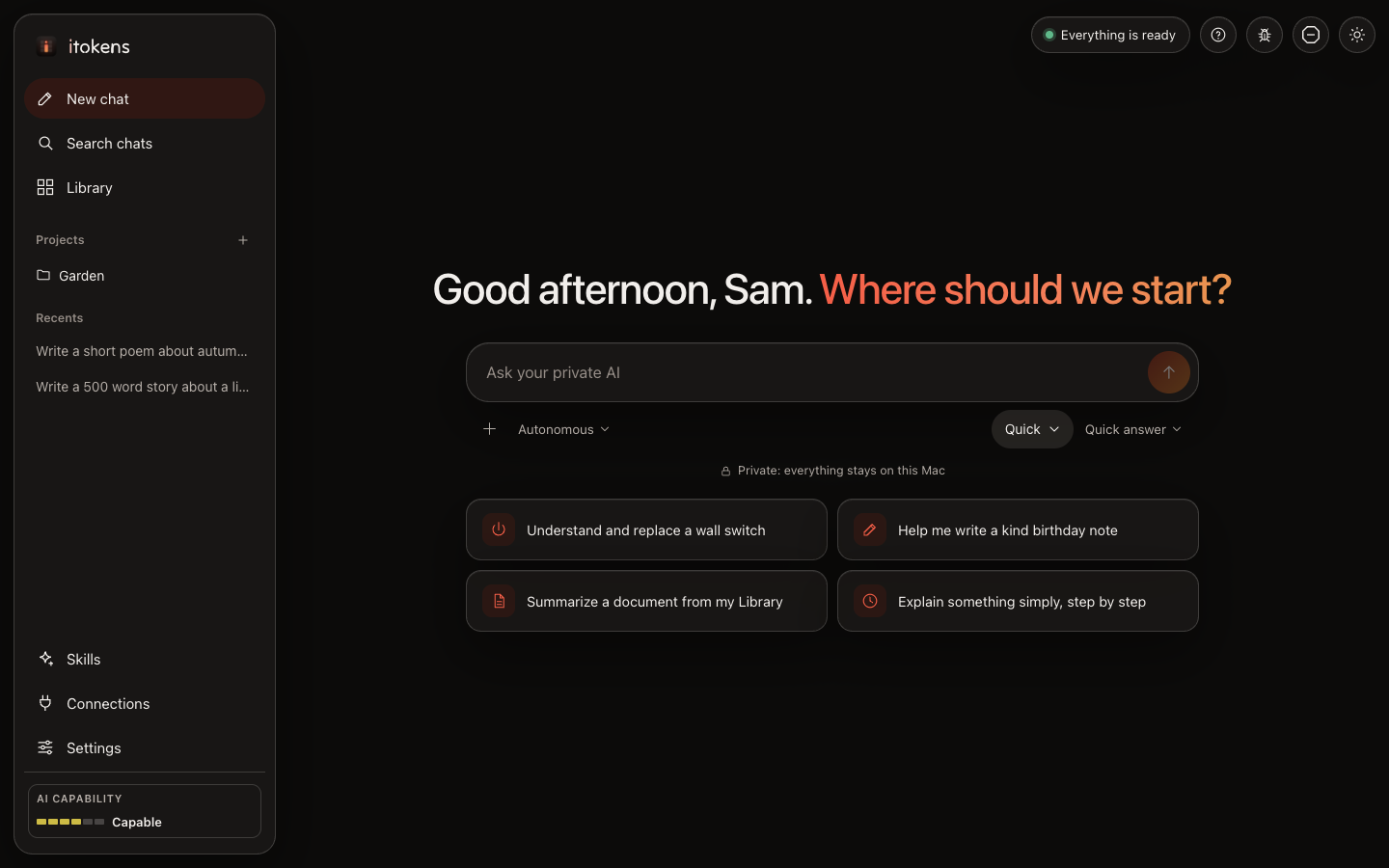
The message box
- Send with Return (Shift and Return starts a new line). While your AI writes, the send button becomes Stop: your message comes back into the box so you can fix a word or rephrase it, and sending it again replaces that exchange.
- Messages you send while your AI is still writing wait in line above the box and go in order. Remove any of them with its X before its turn comes.
- Up and Down arrows bring back what you asked before, like a phone's recent messages.
- Links to web pages in your message are read and given to your AI with it (you can turn this off in Settings). If a page needs you to sign in, the answer shows Sign in, then Try again.
- Web search: with your own Brave Search API key in Settings, your AI searches the web when a question needs current information, and the answer shows what it searched for.
- + adds a file from your Library or your Mac to your next message, or chooses a skill for the chat. The pin beside a Library file keeps it in the chat instead: your AI uses it with every message, and it shows as a chip above the box until you remove it.
- The microphone types what you say. It works in the itokens app, on your Mac only: your voice is never sent anywhere. The first time, macOS asks to allow the microphone and speech recognition.
- Autonomous, Plan or Auto: how your AI works (below).
- Quick, Balanced or Deeper: which model answers (below).
- Quick answer or Think it through: thinking first is slower, and more careful.
- The small ring shows how full the chat is. When it is three quarters full, itokens summarizes the earlier part of the chat by itself so you can keep going (you can make that 80% in Settings); the whole chat stays on your screen.
Autonomous, Plan and Auto
- Autonomous (the default): your AI gets on with it and asks you something only when there is truly nothing to go on. If something is unclear, it picks the most sensible meaning and tells you in a line what it assumed; a letter it writes leaves [brackets] for details it does not know.
- Plan: for a task, your AI first shows a short plan and asks you to approve it; then it does it.
- Auto: your AI answers clear requests straight away and asks you one question first when a request could mean different things.
When your AI asks you something, the question appears with answers to click (or press their number), and Something else to type your own.
Your chats and projects
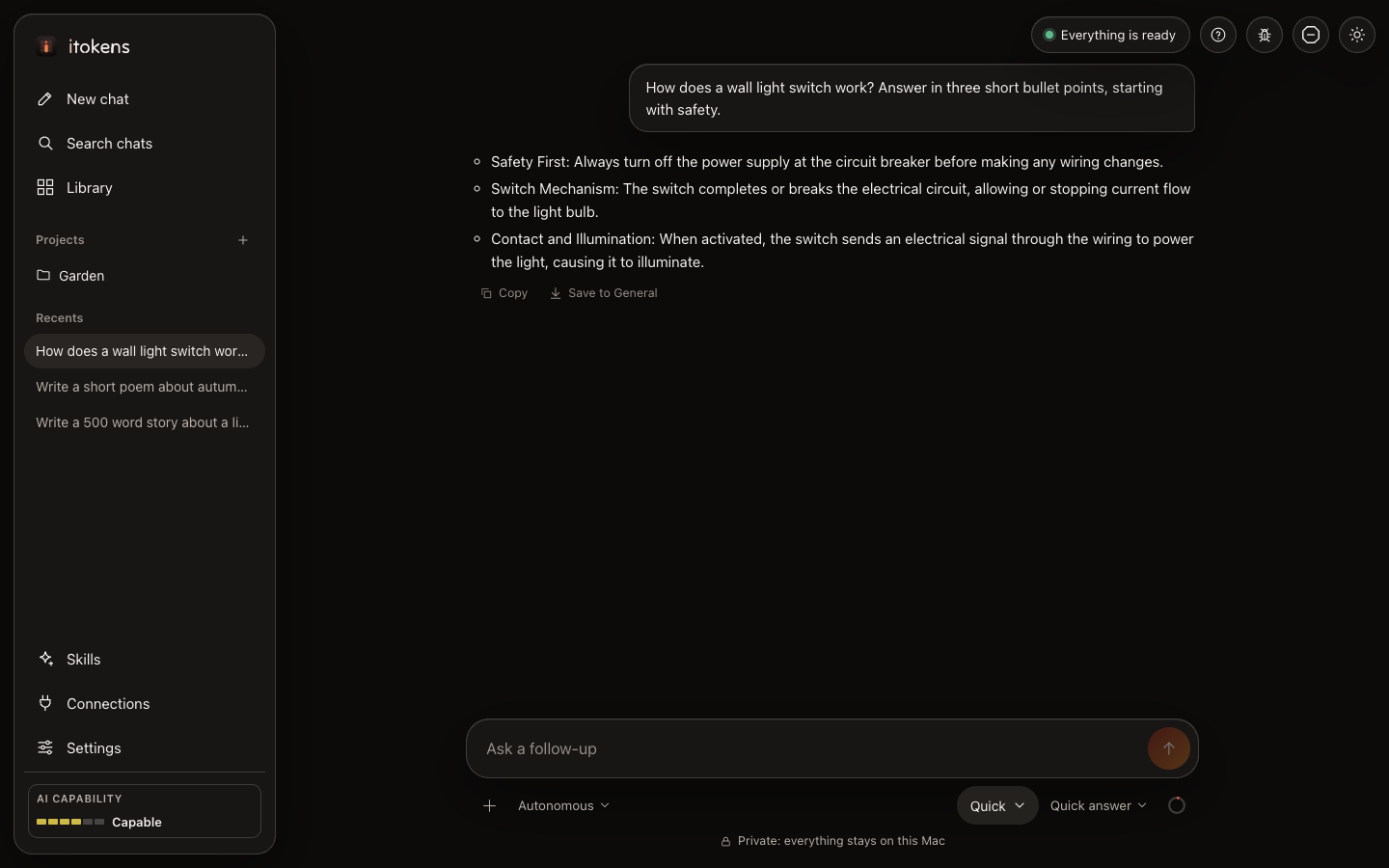
Your chats are saved on your Mac and listed on the left under Recents; Search chats finds any of them by a word in the title or the conversation. Point at a chat to see three small buttons: the pencil renames it, the folder moves it into a project, and X deletes it (click X twice, so a slip does not lose a chat).
Projects group chats that belong together. Make one with the folder button on a chat (New project…) or the + next to Projects. A project's files are used in every chat in it (see Your Library). Deleting a project keeps its chats and files: the chats go back to Recents and the files to General.
Your Library
Library keeps your files on this Mac, in a project or in General. Drop files in or choose them (documents: PDF, Word, text, Markdown, HTML, up to 20 MB; photos: JPEG, PNG, HEIC, up to 50 MB; 10 GB in all); they go to the project you have picked at the top of the Library, and you can move a file to another project at any time. Answers and code your AI writes can be kept too: Save to project under an answer or a piece of code saves it as a file of the chat's project (or General).
Your AI learns your files. In the background, and never while it is answering, itokens reads each file and learns it: the text of documents, and the text in photos (screenshots, scans, a photo of a page) with what they show, read by macOS itself. Then every chat in a project uses that project's files, and chats outside a project use General's: with each message, the passages that help go to your AI, and the files it used are listed under its answer (From:). A small Learning your files… by Library shows while it works, and when it is done you get a short note, such as "I've learned 3 new files in Garden and can answer from them now."
On Macs with 16 GB of memory or more and a Gemma 4 model, your AI also understands your photos: it describes each photo in your Library (so you can find it by what it shows), and when you add a photo to a message it looks at it with your question first. It uses the model already on your Mac; the first time, itokens adds what it needs in the background.
On Macs rated Capable or higher with 20 GB free, itokens also finds what you mean, not only the words you use, with a small search model it downloads once (about 250 MB, from Hugging Face). Your AI capability shows which of these your Mac has, and why when one is off. Everything stays on your Mac.
Quick, Balanced or Deeper
The button in the message box chooses which model answers: Quick for fast everyday answers (the one itokens starts with), Balanced (the right all-rounder for your Mac), and Deeper for more careful answers when your Mac has room. Only models that leave a fifth of your Mac's memory free are offered. itokens keeps all three ready in the background, so switching is quick; if one is not downloaded yet, your current AI keeps answering until it is. If a model does not work on your Mac, your previous AI comes back by itself.
Model names are hidden unless you want them: switch on Model details in Settings. itokens also looks for newer models every day and moves to them by itself once they pass a test on your Mac.
What itokens is doing
The pill at the top right says Everything is ready, or shows what is running with a progress ring. Open it to see each task (a download, reading a document, switching your AI, testing a new model, a backup) and what finished lately. Beside it are Help, Report a bug, Stop all and the light or dark theme.
Skills, connections and settings
Skills are instructions your AI follows, made by asking it. Connections give your AI tools from other apps. Settings has your Mac's hardware, where models are kept, which models itokens may use, backups and the factory reset.
Not sure how to do something? Ask your AI: "How do I make a skill?" or "Where is the backup?" It knows itokens and answers in steps.
Help
Help has a short tour of itokens (it also runs by itself the first time), the documentation, Suggest a feature (tell the people who make itokens what you would like; it is sent only when you press Send) and Share anonymous usage, where you can change your answer at any time. See what is shared.